In many small businesses, everyone uses the same login. The owner, the cashier, the receptionist and the new helper all open the same system, or the same Excel file, with the same password. It feels simple, and at the start it usually is. But as the team grows, "everyone sees everything" quietly turns into a problem.
This guide explains why staff should not have the same access as the owner, what each role usually needs, and how to set up separate access without making daily work harder. It applies to shops, clinics, real estate offices and coaching centres alike.
Why one shared login causes trouble
Sharing one login is not about trust. Most staff are honest and want to do a good job. The trouble is that a shared login removes clarity:
- Nobody knows who changed what. If a price was edited, a sale was cancelled or a record was deleted, there is no way to tell who did it or why.
- Mistakes are easy and costly. A cashier who only needs to make bills can also, by accident, change stock counts or delete a customer's history.
- Private information is open to all. Profit margins, salaries, supplier rates, patient details or a buyer's budget are visible to anyone at the counter.
- Changing the password is painful. When someone leaves, you have to change the password for everyone, so it often never gets changed at all.
None of this means anyone did anything wrong. It simply means the system cannot help you when something goes wrong.
What the owner needs to see
The owner needs the full picture. That usually means:
- Sales, payments and expenses across all days and all staff
- Profit, purchase prices and supplier details
- Reports and summaries
- Settings such as prices, discounts, services and fee plans
- The ability to add or remove staff accounts
In short, the owner sees everything and controls the rules.
What staff usually need
Staff need what helps them do their own job, quickly, and not much more. A few examples:
- Shop cashier: create bills, take payments, check if an item is in stock. A cashier does not usually need to see purchase prices, profit or full sales reports.
- Clinic receptionist: register patients, book appointments, collect fees. Receptionists may not need to read a doctor's detailed notes or see the clinic's earnings.
- Real estate agent: see and update their own leads and follow-ups. An agent may not need every other agent's leads or the office's commission totals.
- Coaching centre front desk: record fee payments and attendance. They may not need to edit fee plans or see the centre's overall income.
Every business is different, so treat these as starting points, not rules. The simple question is: what does this person need to finish their work today?
How to set up separate access, step by step
You do not need a big project to fix this. A simple approach works well:
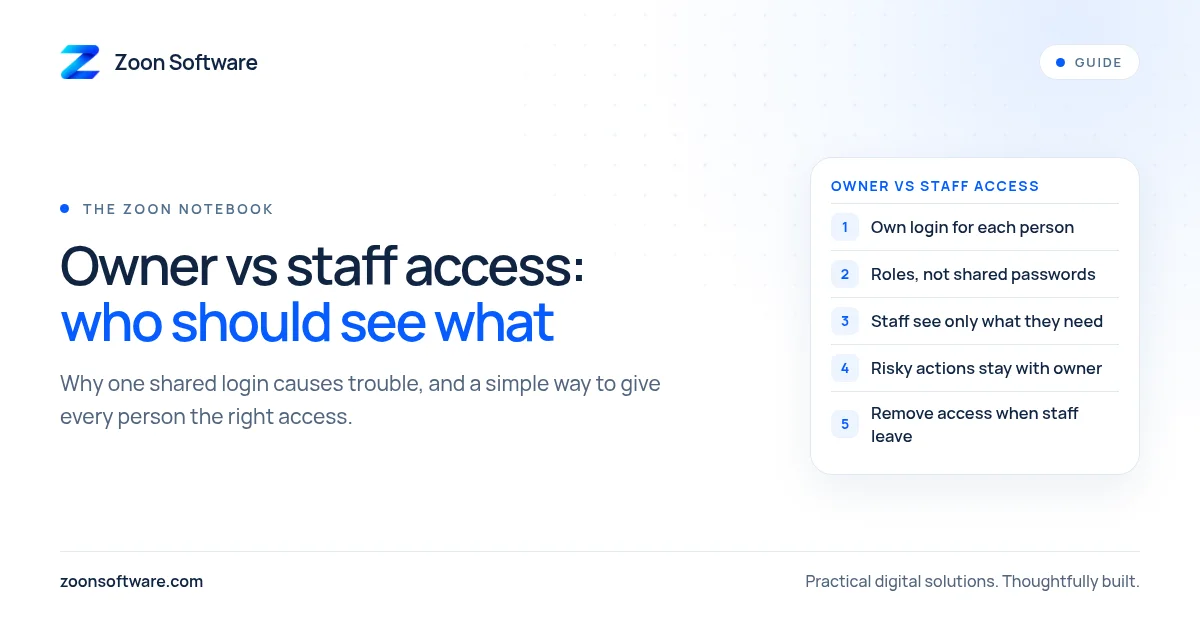
- List your roles, not your people. Write down the jobs in your business: owner, manager, cashier, receptionist, agent. Two or three roles are enough for most small teams.
- Write what each role can do. For each role, list what they can view, what they can add and what they can change. Keep it to one short page.
- Give every person their own login. Even if two people do the same job, give them separate accounts. This is what makes records clear.
- Keep risky actions with the owner. Deleting records, changing prices, giving big discounts and editing past payments are good candidates for owner-only or manager-only actions.
- Remove access the day someone leaves. With separate logins, this takes a minute and does not affect anyone else.
- Review once in a while. Every few months, check who still has access and whether each role still makes sense.
Make it easy, not strict
The goal is not to make staff feel watched or slow them down. If a cashier has to call the owner for every small thing, the counter gets stuck and people start finding workarounds, such as sharing the owner's password again.
A good setup feels natural. Staff see a clean screen with only the buttons they need. The owner gets clear records of who did what. And when a question comes up, like "why was this bill cancelled?", there is a simple answer instead of an argument.
It also helps to explain the change to your team. Tell them it is about clear records and protecting everyone, including them. When a mistake happens, a clear record shows exactly what happened, which is fairer to everyone than guessing.
What to look for in software
If you are choosing or building software for your business, check that it supports:
- Separate logins for each person
- Roles with different permissions
- A record of important actions, such as edits, cancellations and deletions
- Easy ways to add and remove staff
Many off-the-shelf tools offer some of this. If yours does not, or if your business has its own way of working, a simple custom system can be built around your roles.
See it in a demo
Our ShopZoon demo shows the idea with two different logins, one for the admin and one for a cashier, so you can compare what each role sees. The MediZoon clinic demo has a separate reception login too. These are demos with sample data, built to show how such a system can work. You can read more about them on our work page.
If you would like to talk about access and roles for your own shop, clinic, office or academy, write to us at contact@zoonsoftware.com or use our contact page. We are happy to listen first and suggest the simplest setup that fits your team.