When someone in your area needs a doctor, a property dealer, a pharmacy or a tuition academy, there is a good chance they open Google Maps or type "near me" into a search bar. The businesses that show up clearly, with the right hours, a working phone number and real photos, get the call. The ones that are missing, or show the wrong details, quietly lose that customer to the shop down the road.
The good news is that the main tool for this, a free Google Business Profile, does not need a developer or a big budget. It needs an hour of careful setup and a few minutes of attention every week. This guide walks through the basics in plain language for clinics, real estate offices, shops and coaching centres.
What a Google Business Profile actually is
A Google Business Profile is the box that appears on Google Maps and on the right side of (or at the top of) search results when someone searches for your business or for businesses like yours. It shows your name, location on the map, opening hours, phone number, website link, photos and customer reviews.
Many small businesses already have a listing they never created. A customer or Google itself may have added it. That listing might show an old phone number, wrong hours or a pin in the wrong street. If you do not take control of it, you cannot fix it.
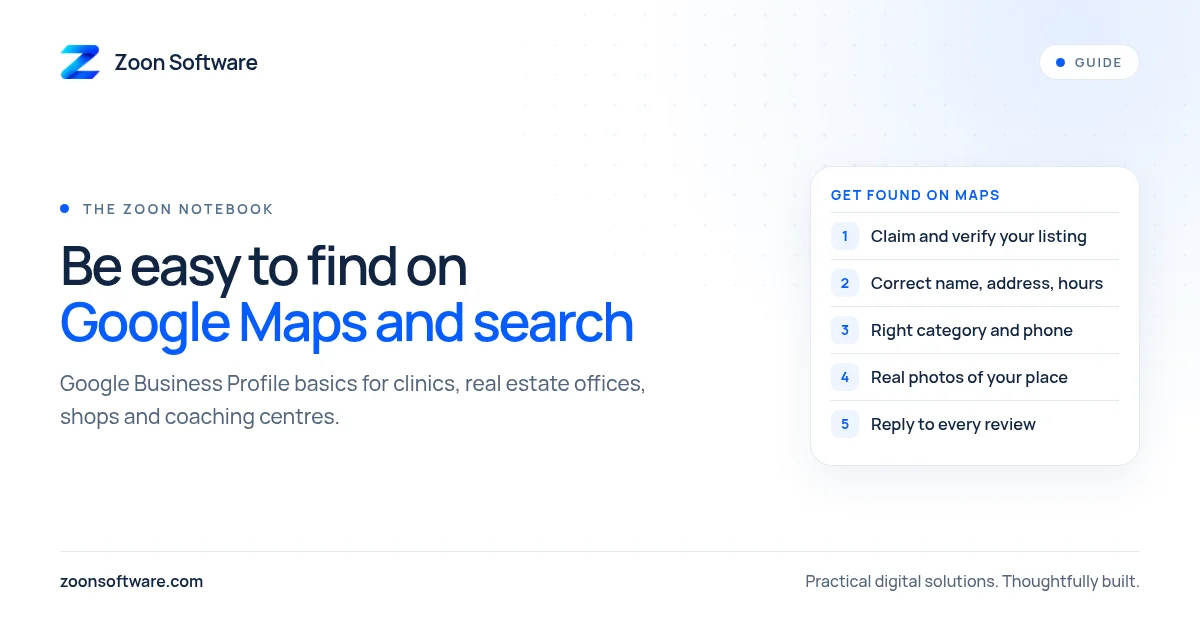
Step 1: Find and claim your listing
Search for your business name and city on Google Maps. If a listing already exists, look for an option to claim or manage it. If nothing exists, you can add your business yourself through Google Business Profile at business.google.com.
Google will ask you to verify that you really run the business. The method varies (it can be a phone call, a text, an email, a video of your premises or a postcard), and Google decides which options you see. Follow the steps patiently. Until the profile is verified, many of your edits will not appear.
A small but important tip: use a business email address that the owner controls, not the personal account of a staff member who might leave next year. Losing access to your own listing is a common and frustrating problem.
Step 2: Get the basic details exactly right
This sounds simple, but it is where most listings go wrong.
- Name: Use your real business name, the same one on your signboard. Do not add extra keywords like "Best Clinic Rawalpindi" to the name. Google's guidelines discourage this, and it can get a listing suspended.
- Address and map pin: Check that the pin sits on your actual building. Add clear directions in your description if your place is hard to find, for example "first floor, above the bakery".
- Phone number: Use a number that someone actually answers during business hours. If calls go to a number nobody picks up, the listing does more harm than good.
- Hours: Add your normal hours and update them for Eid, public holidays and any closures. A patient who arrives at a closed clinic because Google said "open" will not trust your listing again.
- Website: Link your website if you have one. If you only have a Facebook page, link that for now.
Use the same name, address and phone number everywhere: on your website, your Facebook page, property portals and printed cards. Consistency helps customers and helps search engines trust the information.
Step 3: Choose the right category
Your primary category tells Google what kind of business you are, and it strongly affects which searches you appear in. Pick the most specific option that honestly describes you, such as a medical clinic, dental clinic, real estate agency, grocery store, pharmacy or tutoring service. You can add a few secondary categories if they truly apply. Do not add categories for services you do not offer.
Step 4: Add real photos
Photos help people recognise your place before they arrive. Add:
- The outside of the building, including the entrance and signboard, so people can find you.
- The reception, waiting area, shop floor or classroom.
- Your team at work, if they are comfortable with it.
- For clinics, avoid any photo that shows patients or patient records.
Use clear, well-lit photos taken on a normal phone. Real photos are better than stock images, because customers want to see what they will actually walk into.
Step 5: Ask for reviews, and reply to all of them
Reviews are one of the first things people read. The simplest way to get more is to ask satisfied customers politely, for example with a short message after a visit or a purchase that includes the link to your review page. Do not offer discounts or gifts in exchange for reviews, and never write fake ones; this is against Google's rules and customers can usually tell.
Reply to every review, good or bad. Thank people for kind words. For a complaint, stay calm, apologise where it is fair, and offer to sort it out by phone. Other customers read your replies and judge how you treat people when something goes wrong.
Step 6: Keep it alive
A profile is not a one-time job. Set a small weekly routine:
- Check for new reviews and reply.
- Answer any questions people have posted.
- Update hours before holidays.
- Add a new photo or a short update now and then, such as a new service, a new batch starting or a seasonal offer.
Ten minutes a week is enough for most small businesses.
Where a website fits in
Your Google profile helps people find you. Your website is where they decide to trust you. A simple website lets a clinic list doctors and timings, a real estate office show current listings, a shop show its range, and a coaching centre show its courses and fees. When your profile links to a clear website, customers have fewer reasons to look elsewhere.
If you want to see what organised business software can look like behind the scenes, you can explore our demo apps (they use sample data, not real customers): MediZoon for clinics, EstateZoon for real estate offices and ShopZoon for shops.
Need a hand?
If you would like help setting up a simple website that works well with your Google profile, or a system to manage appointments, leads or stock, we are happy to talk it through. Write to us at contact@zoonsoftware.com or use our contact page. No pressure, just practical advice.