
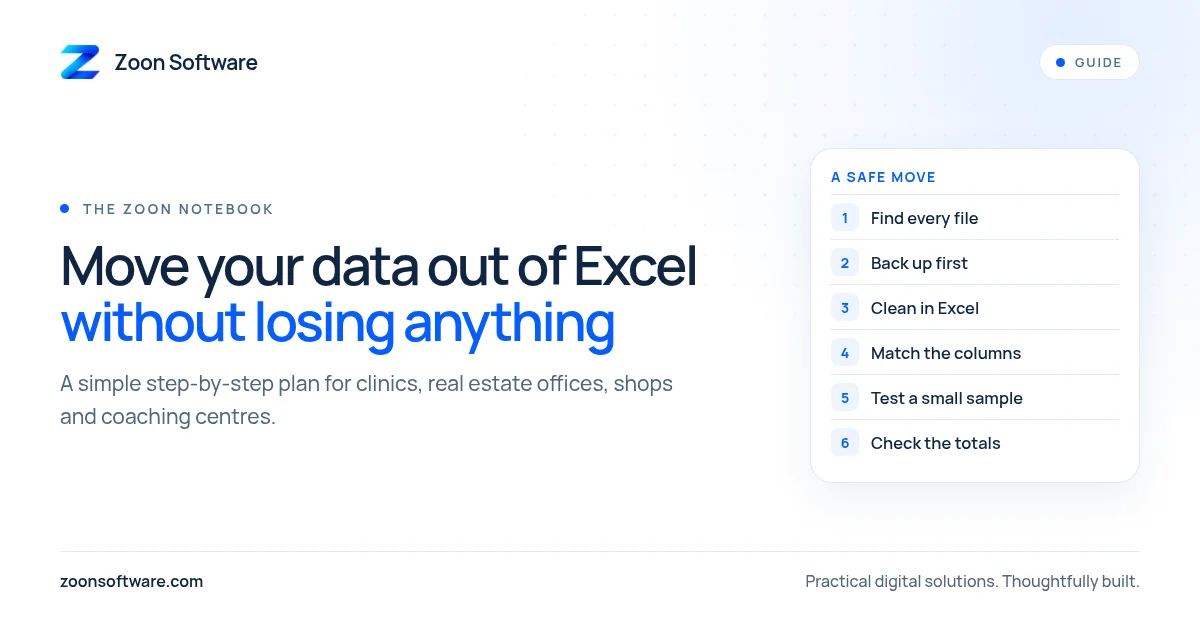
Many small businesses run on spreadsheets for years, and that is nothing to be ashamed of. Excel is flexible, cheap and familiar. But when you finally decide to move to proper software, one worry comes up again and again: "What if we lose our data on the way?"
Patient histories, property inquiries, customer balances and student fee records are not things you can afford to lose. The good news is that a careful move is mostly about preparation, not technology. This guide walks you through a simple, step-by-step way to do it, whether you run a clinic, a real estate office, a shop or a coaching centre.
Step 1: Find every file before you move anything
Data in a small business is rarely in one place. There is usually a "main" spreadsheet, plus older copies, files on a staff member's laptop, a sheet someone shared on WhatsApp, and perhaps a paper register for the days the computer was off.
Before you start, make a simple list:
- Which files exist, and where are they saved?
- Who updates each one, and how often?
- Which file is the most recent and correct version?
- Is anything still kept only on paper?
This list alone often surprises owners. It is common to find two versions of the same customer list with different numbers in them. Better to find that now than after the move.
Step 2: Make a safe backup copy
Before you clean or change anything, copy every file into one dated folder, for example "Backup before move" with today's date, and keep a second copy on a USB drive or a cloud drive. Do not edit these copies. They are your safety net. If anything goes wrong later, you can always go back and check what the original said.
Step 3: Decide what actually needs to move
Not everything in an old spreadsheet deserves a place in your new system. Sit down with the people who use the data every day and sort it into three groups:
- Must move: active customers or patients, current balances, open property inquiries, enrolled students and unpaid fees.
- Keep as an archive: old records you may need to look up occasionally, but do not use daily. These can stay in the backup folder.
- Leave behind: test rows, duplicate sheets and columns nobody has filled in for a long time.
Moving less, but moving it correctly, is better than moving everything in a mess.
Step 4: Clean the data in the spreadsheet first
Cleaning is easier in Excel, where you already know your way around, than in a new system you are still learning. Focus on a few common problems:
- Duplicates. The same customer entered twice, once as "Ali Traders" and once as "Ali Trader". Pick one and merge their details.
- Phone numbers. Write them all in one format, with no spaces or dashes mixed in. This matters if you later want to send reminders.
- Dates. Some rows may say 05/11, others 11-5, others "5 Nov". Choose one format and use it everywhere.
- Mixed columns. A "Notes" column that holds phone numbers, amounts and comments together should be split into separate columns.
- Blank but important fields. If a balance or a contact number is missing, fill it in now or mark it clearly so someone can follow up.
Step 5: Match your columns to the new system
Your new software will have its own fields, such as "Patient name", "Phone", "Last visit" or "Amount due". Write a short two-column list: your spreadsheet column on the left, the new field on the right. Any column with no match needs a decision. Either the new system needs an extra field, or that information can stay in the archive.
If you are working with a software company, this list is one of the most useful things you can hand them. It shows exactly what you have and what you expect to see.
Step 6: Test with a small sample first
Do not import everything on day one. Move a small, mixed sample first: a few ordinary records, a few with long names or notes, and a few with balances. Then check them on screen. Do the names look right? Are the amounts correct? Did dates turn into strange numbers? Fix any problems, then move the rest.
Step 7: Check the totals after the full move
Once all the data is in, compare a few simple totals between the old spreadsheet and the new system:
- The number of customers, patients, properties or students
- The total amount owed to you
- A handful of individual records picked at random
If the totals match, you can be confident nothing important went missing. If they do not, your untouched backup tells you where to look.
Step 8: Run both for a short time, then switch fully
For a short period, many businesses keep the old spreadsheet open as read-only while staff start working in the new system. This builds confidence. But set a clear switch-over date. If people keep updating both, you will soon have two versions of the truth again, which is exactly the problem you were trying to solve.
A move done slowly is a move done well
None of these steps needs special skills. They need a little time, one person who takes ownership, and patience during the first week. Done this way, moving out of Excel stops being scary and becomes a fresh, clean start for your records.
If you would like to see what organised records can look like after the move, have a look at our project demos. For example, ShopZoon shows stock, sales and customer records for a shop. These are demo apps with sample data, so you can explore freely.
Planning a move from spreadsheets and not sure where to start? Write to us at contact@zoonsoftware.com or use our contact page. We are happy to talk it through with you.